# [Chime] Screen Recording Requirements (Auto-Update Build) [External-facing]
- [Client Device Requirements](#clientdevicerequirements)
- [Operating System](#operatingsystem)
- [Hardware](#hardware)
- [Bandwidth](#bandwidth)
- [Storage](#storage)
- [CPU and Memory Utilisation](#cpuandmemoryutilisation)
- [Display Resolution](#displayresolution)
- [Server Requirements](#serverrequirements)
- [Firewall Whitelisting](#firewallwhitelisting)
- [APPENDIX FOR SETUP BELOW](#appendixforsetup-below)
- [Step 1: Removing older app versions](#step1removingolderappversions)
- [Step 2: Installation](#step2installation)
- [Windows](#windows)
- [Step 3: Launch the App](#step3launchtheapp)
- [Error State](#errorstate)
- [Troubleshooting](#troubleshooting)
* * *
# Client Device Requirements
## Operating System
**Windows**
- Windows 7 and later
- `x86` and `x64` are supported. Please note, the `ARM` version of Windows is not supported for now.
## Hardware
- 8 GB of RAM
- **Windows:** 4 Core processor (Intel Core i5 or later)
**Note**: CPU Usage may vary from `10%` to `30%` depending upon the number of monitors and the resolution of the monitors being recorded.
## Bandwidth
- Minimum Upload/Download Speed: 5Mbps
## Storage
- Installation size: ~300MB
- Additional disk storage required: ~30 MB
## CPU and Memory Utilisation
- App tends to use **a minimum of 80 MB** of RAM.
- App tends to use **a minimum of 1%** of CPU
## Display Resolution
It is recommended that agents use the ***default screen resolution*** on their device.
* * *
# Server Requirements
## Firewall Whitelisting
| **DNS** | **Port** | **Reason for Whitelisting** |
| --- | --- | --- |
| api-us3.pusher.com | 443 | triggers for starting/stoping recording |
| wss://ws-us3.pusher.com | 443 | triggers for starting/stoping recording |
| http-intake.logs.datadoghq.com | 443 | for sending app activity information to datadog |
| prod-api.thelevel.ai | 443 | Level APIs for authorising user |
| screen-case.thelevel.ai | 443 | For starting and stopping the recording |
| screen.thelevel.ai | 1935 | For streaming the recording to our servers |
| https://screen-app.thelevel.ai | 443 | For checking the network |
| [sr-releases.thelevel.ai](https://sr-releases.thelevel.ai/) | 443 | For autoupdate to work |
| https://screen-app-chime.thelevel.ai | 443 | For the app UI |
| https://sr-platform.thelevel.ai | 443 | For getting configuration specific to organisation. |
| `https://launchdarkly.thelevel.ai` | 443 | For customising app behaviour for different customers |
| `https://stream.launchdarkly.com` | 443 | For customising app behaviour for different customers |
| `https://sdk.launchdarkly.com` | 443 | For customising app behaviour for different customers |
| `https://events.launchdarkly.com` | 443 | For customising app behaviour for different customers |
| `https://api.mixpanel.com` | 443 | For getting analytics events |
| `https://api-eu.mixpanel.com` | 443 | For getting analytics events |
| `https://api-in.mixpanel.com` | 443 | For getting analytics events |
| `https://storage.googleapis.com/screen-recording-autoupdate-release-production` | 443 | For downloading the app update |
For app versions <=3.0.12, certain optimizely URLs might need to be whitelisted. If you are on a later version, the above list is sufficient.
* * *
# APPENDIX FOR SETUP BELOW
* * *
# Step 1: Removing older app versions
*Note: The script is designed to be executed with admin level privilege in powershell, It is recommended to be executed via the MDM software.*
1. Copy the following script -
```powershell
# Run as Administrator to access all user directories
$adminCheck = [System.Security.Principal.WindowsIdentity]::GetCurrent()
$adminRole = [System.Security.Principal.WindowsPrincipal]::new($adminCheck)
if (-not $adminRole.IsInRole([System.Security.Principal.WindowsBuiltInRole]::Administrator)) {
Write-Host "Please run this script as Administrator!" -ForegroundColor Red
exit
}
# Define the application name
$appName = "Level Screen Recorder"
# Get all user directories in C:\Users
$userProfiles = Get-ChildItem -Path "C:\Users" -Directory | Select-Object -ExpandProperty FullName
# Search for the product in both 32-bit and 64-bit registry paths
$uninstallKeys = @(
"HKLM:\SOFTWARE\Microsoft\Windows\CurrentVersion\Uninstall\*",
"HKLM:\SOFTWARE\WOW6432Node\Microsoft\Windows\CurrentVersion\Uninstall\*"
)
# Function to find all product codes for applications matching the name
function Get-ProductCodes {
$productCodes = @()
foreach ($keyPath in $uninstallKeys) {
$installedApps = Get-ItemProperty -Path $keyPath -ErrorAction SilentlyContinue | Where-Object {
$_.DisplayName -like "*$appName*"
}
foreach ($app in $installedApps) {
# Extract only the GUID (ProductCode) without .msq
$productCode = $app.PSChildName -replace '\.msq$', ''
$productCodes += $productCode
}
}
return $productCodes
}
# Function to uninstall MSI version
function Uninstall-MSI {
$productCodes = Get-ProductCodes
if ($productCodes.Count -gt 0) {
foreach ($productCode in $productCodes) {
Write-Host "Uninstalling MSI application with Product Code: $productCode"
$exitCode = Start-Process -FilePath "msiexec.exe" -ArgumentList "/x $productCode /qn" -Wait -PassThru
if ($exitCode.ExitCode -eq 0) {
Write-Host "Uninstalled successfully: $productCode"
} else {
Write-Host "Failed to uninstall: $productCode with Exit Code: $($exitCode.ExitCode)"
}
}
} else {
Write-Host "No MSI installations found for $appName."
}
}
# Function to uninstall Squirrel-based app
function Uninstall-SquirrelApp {
param ([string]$appFolderPath)
$uninstallerPath = [System.IO.Path]::Combine($appFolderPath, "Update.exe")
if (Test-Path $uninstallerPath) {
Write-Host "Uninstalling Squirrel-based application from: $uninstallerPath"
Start-Process $uninstallerPath -ArgumentList "--uninstall" -Wait
} else {
Write-Host "Squirrel uninstaller not found at: $uninstallerPath"
}
}
# Function to delete a folder
function Delete-Folder {
param ([string]$folderPath)
if (Test-Path $folderPath) {
try {
Remove-Item -Path $folderPath -Recurse -Force
Write-Host "Deleted folder: $folderPath"
} catch {
Write-Host "Failed to delete: $folderPath - $_"
}
}
}
# Function to delete application shortcuts
function Delete-Shortcuts {
param ([string]$userProfile)
$desktopShortcut = "$userProfile\Desktop\Level Screen Recorder.lnk"
$startMenuShortcut = "$userProfile\AppData\Roaming\Microsoft\Windows\Start Menu\Programs\levelAI\Level Screen Recorder.lnk"
if (Test-Path $desktopShortcut) {
Remove-Item -Path $desktopShortcut -Force
Write-Host "Removed desktop shortcut: $desktopShortcut"
}
if (Test-Path $startMenuShortcut) {
Remove-Item -Path $startMenuShortcut -Force
Write-Host "Removed start menu shortcut: $startMenuShortcut"
}
}
# Kill running application process
$process = Get-Process -Name "Level Screen Recorder" -ErrorAction SilentlyContinue
if ($process) {
Stop-Process -Name "Level Screen Recorder" -Force
Write-Host "Stopped running instance of Level Screen Recorder"
}
# Uninstall MSI-based installation
Uninstall-MSI
# Iterate through all user directories
foreach ($userProfile in $userProfiles) {
try {
Write-Host "`nProcessing user profile: $userProfile" -ForegroundColor Cyan
$userAppDataLocal = "$userProfile\AppData\Local"
$installPaths = @("$userAppDataLocal\LevelAI", "$userAppDataLocal\com")
foreach ($installPath in $installPaths) {
$appExe = [System.IO.Path]::Combine($installPath, "Level Screen Recorder.exe")
if (Test-Path $appExe) {
Write-Host "Found Level Screen Recorder in: $installPath"
Uninstall-SquirrelApp -appFolderPath $installPath
if (-not (Test-Path $appExe)) {
Write-Host "Uninstalled successfully from: $installPath"
Delete-Folder -folderPath $installPath
} else {
Write-Host "Uninstallation failed for: $installPath"
}
}
}
# Remove desktop and start menu shortcuts
Delete-Shortcuts -userProfile $userProfile
}
catch {
Write-Host "Error processing user profile $userProfile : $_" -ForegroundColor Red
continue
}
}
# Handle Default User separately
$defaultUserPaths = @(
"C:\Users\Default\AppData\Local\LevelAI",
"C:\Users\Default\AppData\Local\com"
)
foreach ($path in $defaultUserPaths) {
$defaultAppExe = [System.IO.Path]::Combine($path, "Level Screen Recorder.exe")
if (Test-Path $defaultAppExe) {
Write-Host "Found Level Screen Recorder in: $path"
Uninstall-SquirrelApp -appFolderPath $path
if (-not (Test-Path $defaultAppExe)) {
Write-Host "Uninstalled successfully from: $path"
Delete-Folder -folderPath $path
} else {
Write-Host "Uninstallation failed for: $path"
}
}
}
Write-Host "Cleanup and uninstallation process complete!"
```
2. Paste it in the MDM software or admin level Powershell on the agent's system. It will completely remove the app from the system post which new app can be deployed.
3. Post the script execution, opening the Control Panel → Add or remove programs should not list any item with the name matching **"Level Screen Recorder".**
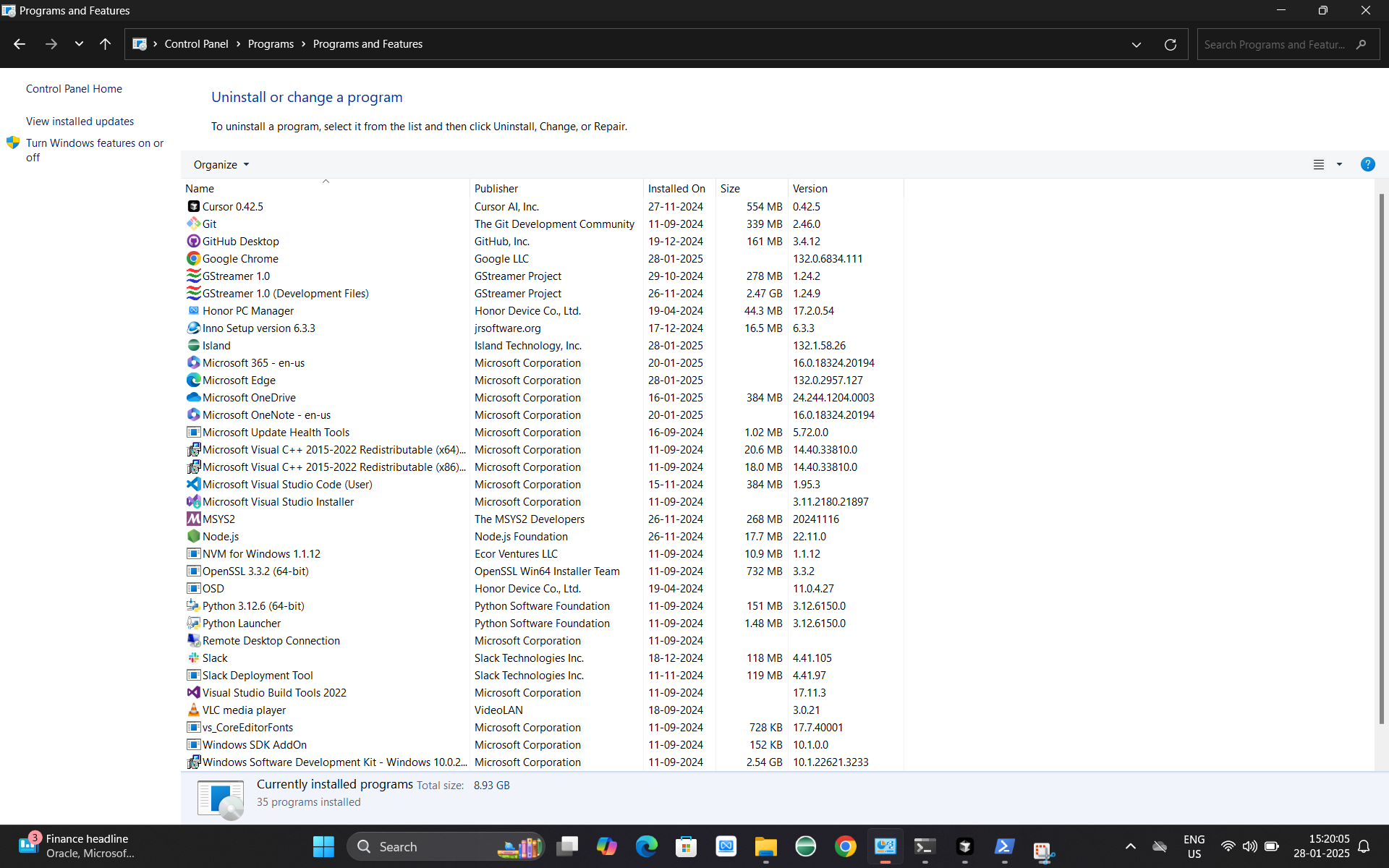
4. State in the picture shown above marks the successful uninstallation of the old app and new app can be safely installed.
# Step 2: Installation
**Important**: Agent will need admin access on their device to install the application*
## Windows
### **Important**: If the *Windows registry* edit permission is disabled for your organization, Please refer to the [Troubleshooting](#troubleshooting) section
1. Navigate to this [link](https://sr-releases.thelevel.ai/releases/rc/default?platform=windows) and choose **Windows** in platform dropdown if not already selected and click download icon.
2. After the download, You should have a file named - **Level Screen Recorder Deployment Tool 3.x.x.msi**.
3. Deploy **Level Screen Recorder Deployment Tool 3.x.x.msi** centrally to the agent's machines. After installation, The control panel in the agent's machine would show the installed deployment tool like this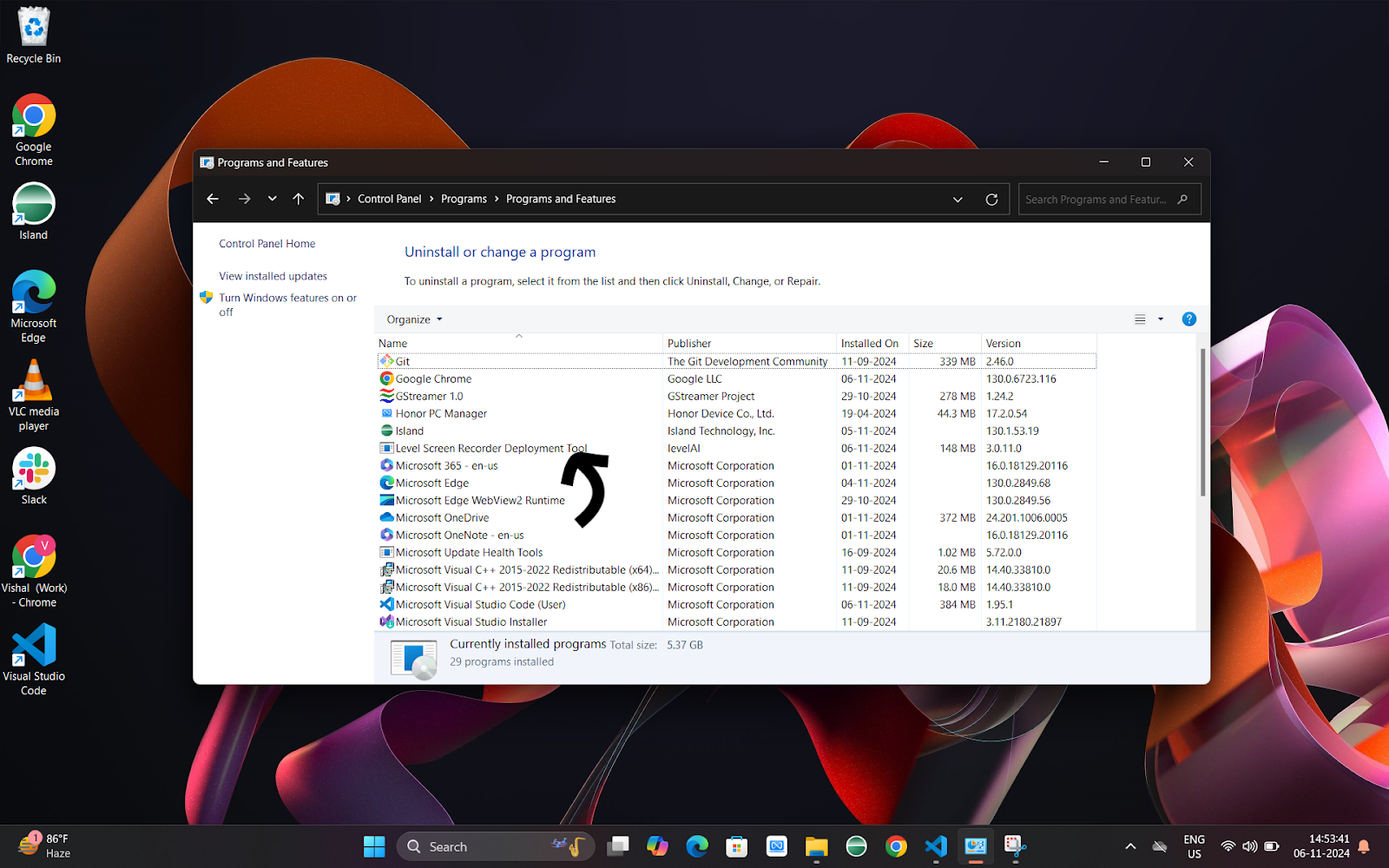
4. If the **Level Screen Recorder Deployment Tool** is visible in the control panel, then the **Level Screen Recorder** app will be deployed whenever the agent will login to the system next.
5. If the agent is already logged in, he will have to restart or cycle the signing out and signing in once for the app to get installed. A maximum of **5 minutes** can be taken for the app to be installed after the system restart. After the app installation, The control panel on the agent's machine will look like this -
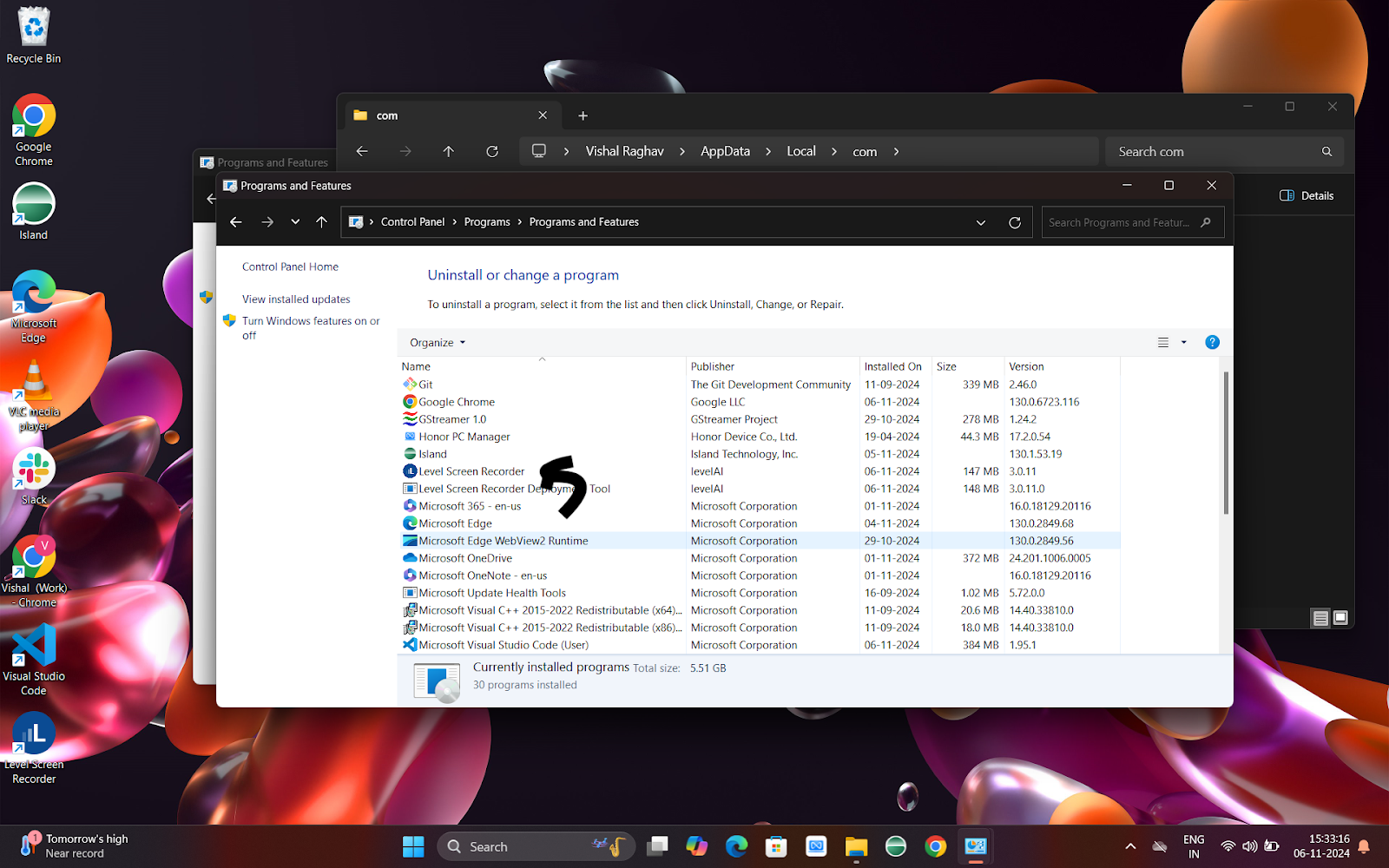
6. **Level Screen Recorder** shortcut can also be seen on the desktop in the last screenshot.
7. Double click the **Level Screen Recorder** shortcut on the desktop to launch the app. Post this, the app will be launched automatically on system login.
8. If in an unlikely situation, Where the app is visible in the control panel but not on desktop. Please contact the Level AI team for further assistance.
* * *
# Step 3: Launch the App
**Note**: Screenshots can differ slightly from the actual UI of the app.
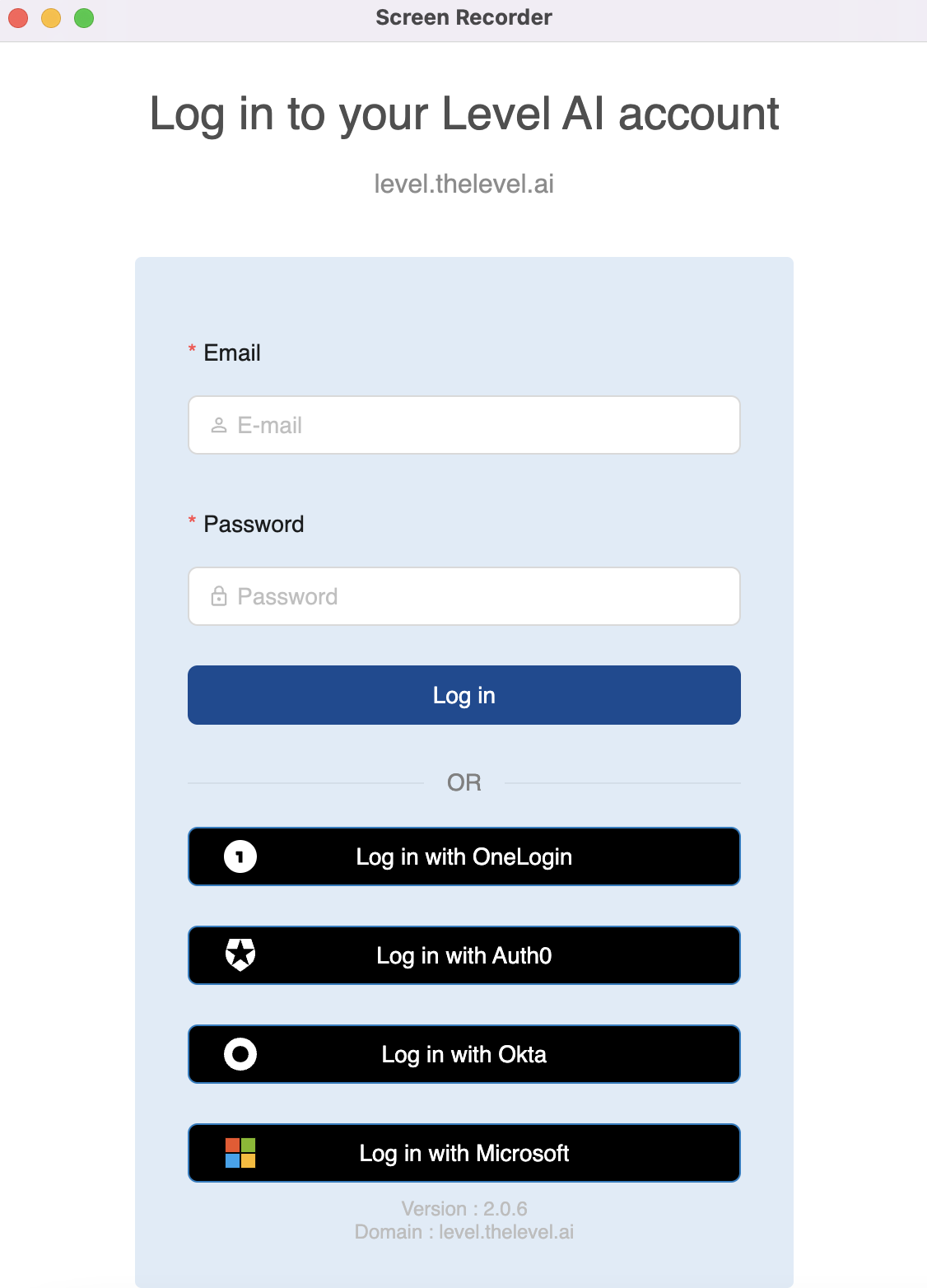
1. After successful installation and launch, the application would request for the 'Organisation' Name (ask your admin if you don't know this) (e.g. For Level AI, It is `level`)
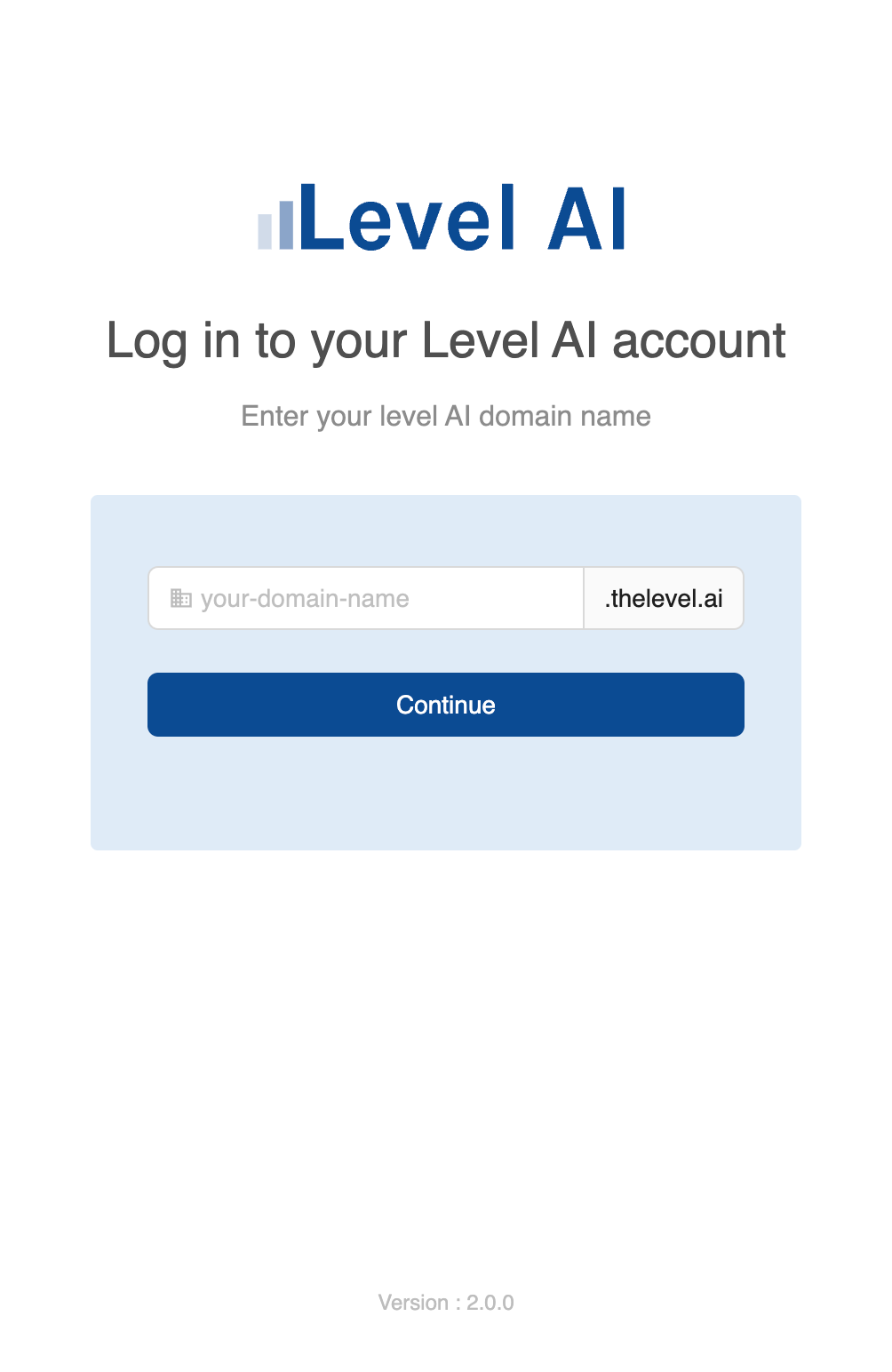
2. Proceed to the Login page, and provide your credentials or use available SSO.
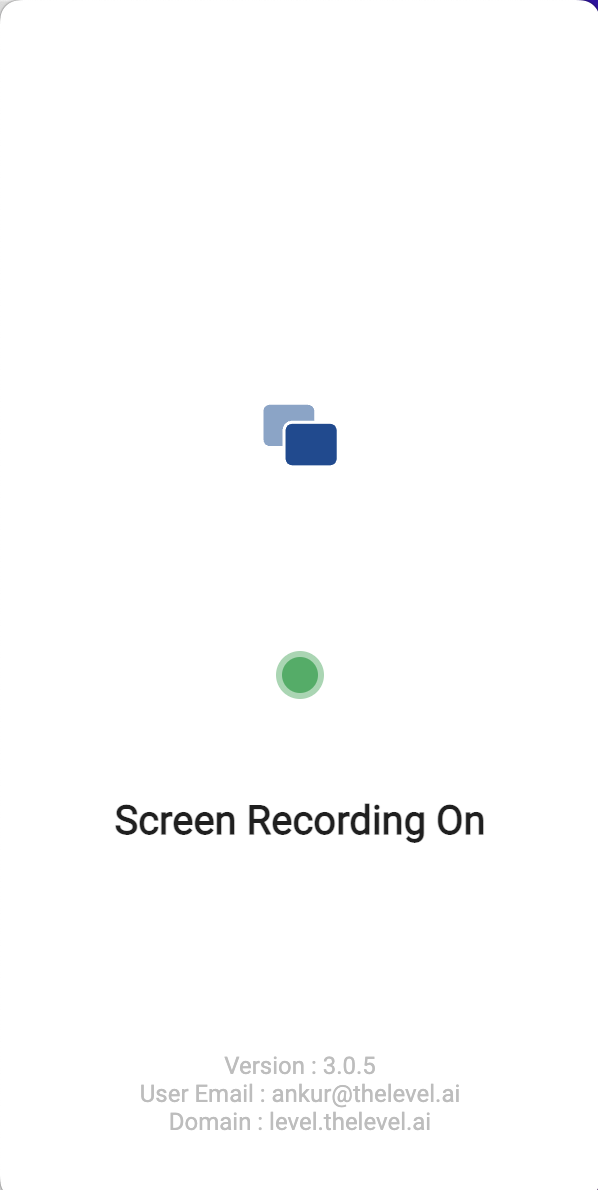
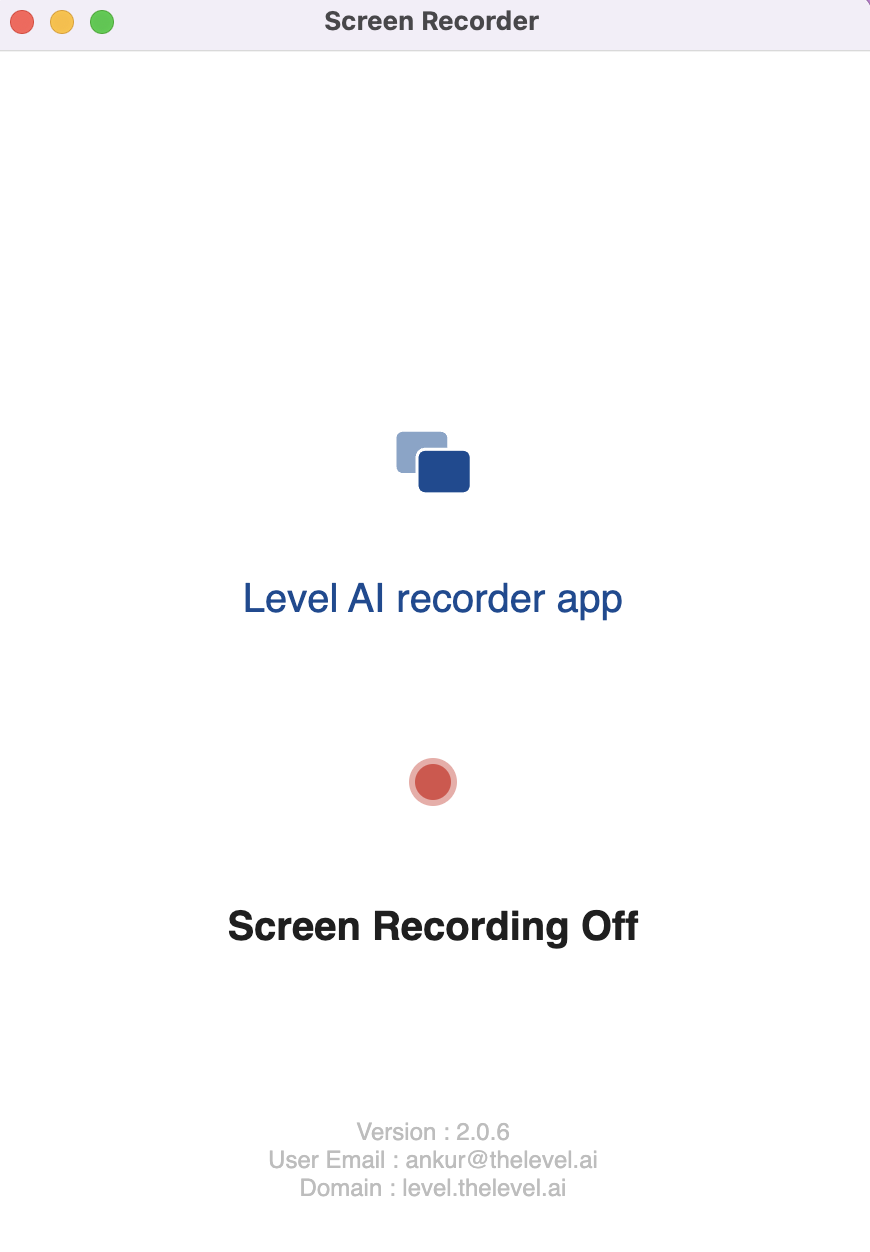
3. 
You should be greeted with a 'Status Page' below
* * *
# Error State
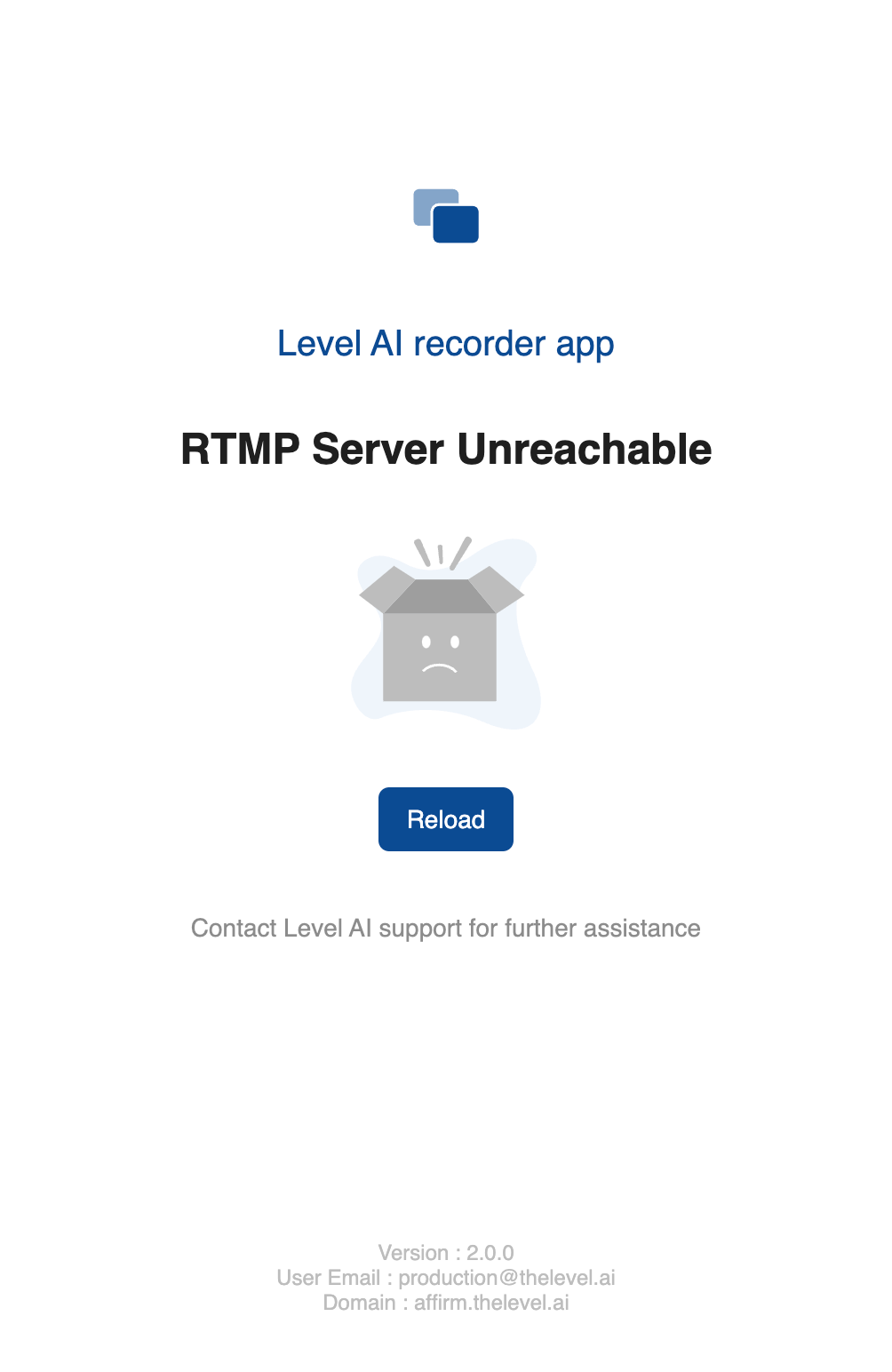
If the application encounters an error of any sort, the recorder stops and displays an error message.
# Troubleshooting
1. If the Windows registry edit permission is disabled for your organization, Kindly run the following script centrally with admin privilege to enable the auto app installation, This script requires write access to `C:\ProgramData\Microsoft\Windows\Start Menu\Programs\Startup` directory to create an auto-install shortcut.
The agents will also need to have read and execute permissions on the `C:\ProgramData\Microsoft\Windows\Start Menu\Programs\Startup` directory to auto-install the app.
```powershell
$shortcutName = "LevelAIDeploymentTool.lnk"
$targetPath = "C:\Program Files (x86)\Level Screen Recorder Deployment\LevelAIDeploymentTool.exe"
$startupFolder = "C:\ProgramData\Microsoft\Windows\Start Menu\Programs\Startup"
$shortcutPath = Join-Path -Path $startupFolder -ChildPath $shortcutName
# Create WScript Shell COM object and create shortcut
try {
$WshShell = New-Object -ComObject WScript.Shell
$Shortcut = $WshShell.CreateShortcut($shortcutPath)
$Shortcut.TargetPath = $targetPath
$Shortcut.Arguments = "--checkInstall"
$Shortcut.WorkingDirectory = "C:\Program Files (x86)\Level Screen Recorder Deployment"
$Shortcut.Description = "Launch LevelAIDeploymentTool at startup"
$Shortcut.Save()
if (Test-Path $shortcutPath) {
Write-Host "Shortcut created successfully in ProgramData StartUp: $shortcutPath" -ForegroundColor Green
} else {
throw "Shortcut file not found after creation attempt"
}
} catch {
Write-Host "Error: Failed to create shortcut in ProgramData StartUp. Details: $_" -ForegroundColor Red
Write-Host "Path attempted: $shortcutPath" -ForegroundColor Yellow
}
```